1. How it works
OTPOS Retail Pro works exactly like the free edition on a single computer: out of the box every register keeps its data in a local database on its own disk. When a store has more than one register, Pro can instead connect all registers to one shared network database (MySQL or MariaDB). Every register then sees the same products, stock, members, sales, shifts and staff accounts the moment they change.
One computer runs the database server; every register connects to it over the store network.
Setting this up takes three steps:
1 · Install the server
Run the OTPOS Retail MySQL setup on one computer that is always on. It installs MySQL as a Windows service, creates the database and opens the firewall. (Section 3)2 · Connect the first register
On the register that already has your products and sales, open Settings → Network data and connect. Its data is copied to the server. (Section 5)3 · Connect the others
Enter the same connection details on every other register. They start using the shared data straight away. (Section 6)Each register keeps its own device settings locally — receipt printer, cash drawer, scale, customer display, language and theme — so registers with different hardware work side by side. Everything else is shared.
2. Before you start
What you need
| Item | Requirement |
|---|---|
| Server computer | Windows 10 or 11, 64-bit. It must be switched on whenever any register is selling. A back-office PC or one of the registers is fine. About 1 GB free disk space to start with; more as sales accumulate. |
| Registers | OTPOS Retail Pro installed on each register, all the same version (see Updating). Windows 10 or 11. |
| Network | All computers on the same store network (wired Ethernet recommended for the server). The server needs a fixed IP address — set a DHCP reservation in your router, or a static IP in Windows. |
| Account | A Windows administrator account on the server (the setup asks for permission). An OTPOS Admin staff account on each register (only admins can open Settings). |
| Database server | Either the included OTPOS Retail MySQL package (MySQL 5.7, recommended), or your own server: MySQL 5.7.9 or later, or MariaDB 10.2.2 or later (see Section 4). |
| Internet | Only needed to activate the licence and for automatic backups to OneDrive. Selling does not need the internet. |
Files
| File | Install on |
|---|---|
OTPOS-Retail-MySQL-1.1.1-x64-Setup.exe | The server computer only. |
OTPOS-Retail-Pro-1.2.1-x64-Setup.exe | Every register (including the server, if it is also a register). Installing Pro over the free edition keeps your data. |
Back up first. Before you start, make a backup on the register that holds your current data: Settings → Backup & data (called Network data in Pro) → Back up now. Copying data to the server never changes the local database, but a backup is always the safe first step.
3. Install the MySQL server
Download OTPOS-Retail-MySQL-1.1.1-x64-Setup.exe from the OTPOS Retail Pro download section (the same page is one click away from Settings → Network data in OTPOS Retail Pro). Do this on the server computer only. Run it and click Yes when Windows asks whether the app may make changes. The setup is available in English, Chinese, French and Spanish and picks your Windows language automatically.
Setup wizard
-
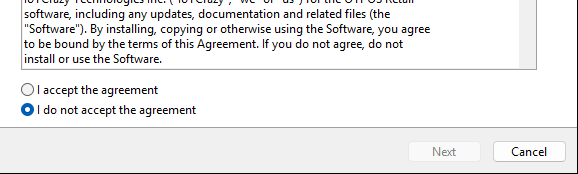
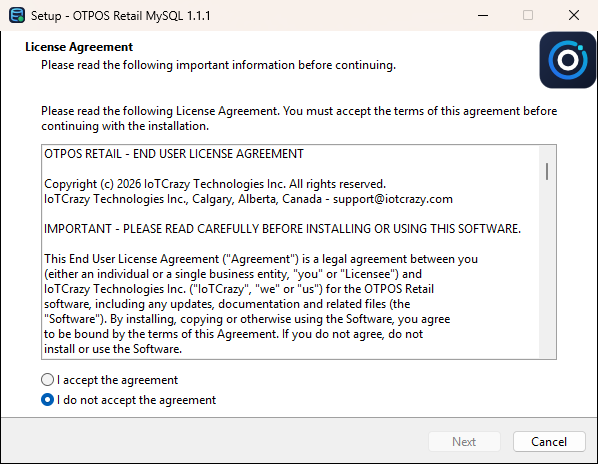
License Agreement. Read the agreement, select I accept the agreement and click Next.
 Full window
Figure 1. License Agreement. -
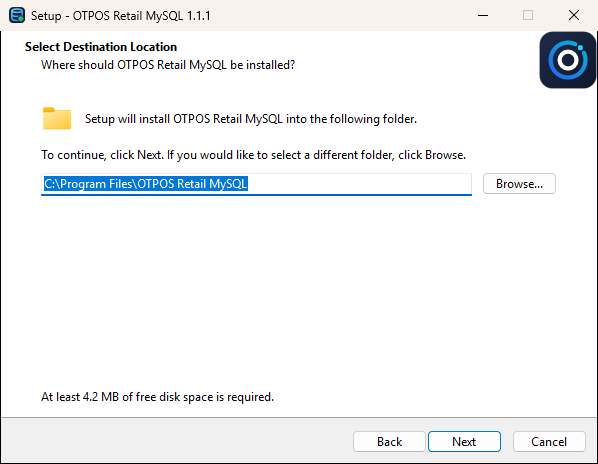
Select Destination Location. Keep the suggested folder (
C:\Program Files\OTPOS Retail MySQL) and click Next. This folder holds the program only — the database itself is stored inC:\ProgramData\OTPOS Retail\MySQL.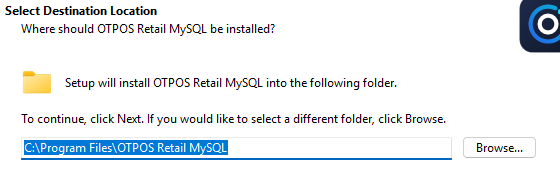 Full window
Figure 2. Program folder. -
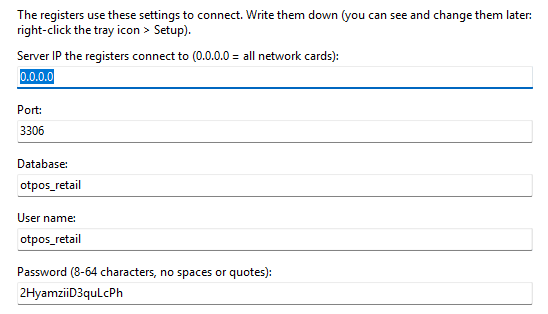
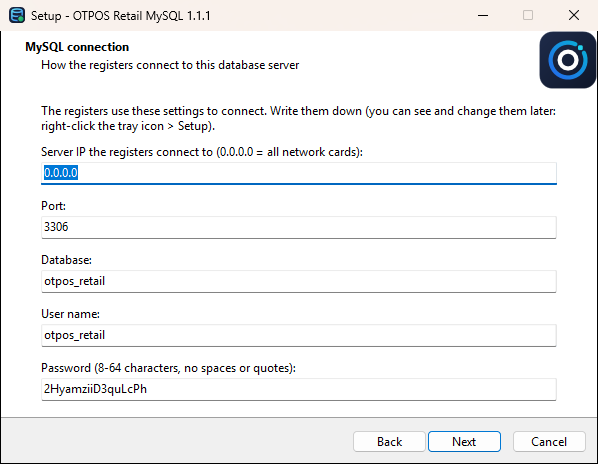
MySQL connection. These are the details every register will use to connect. The suggested values work for almost every store; the password is generated randomly. Write all of them down (use the connection record at the end of this guide) — you can also look them up later in the server’s Setup window.
 Full window
Figure 3. Connection details. The password shown here is an example; yours is different. Field Default What it means Server IP 0.0.0.0The network address MySQL listens on. 0.0.0.0= all network cards (recommended). You can enter one IPv4 address of this computer instead, e.g.192.168.1.10.Port 3306The standard MySQL port, 1024–65535. Change it only if another MySQL already uses 3306. Database otpos_retailName of the database. Letters, digits and _.User name otpos_retailThe account the registers sign in with. Letters, digits and _, up to 32 characters, notroot.Password random, 16 characters 8–64 characters without spaces, quotes ( ' " `) or backslashes.Allowed host %Which computers may connect: %= any computer,192.168.1.%= only computers on that network. -
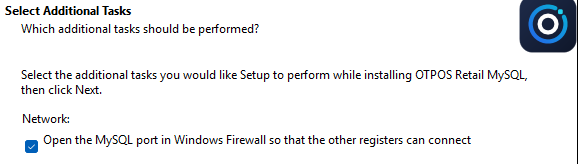
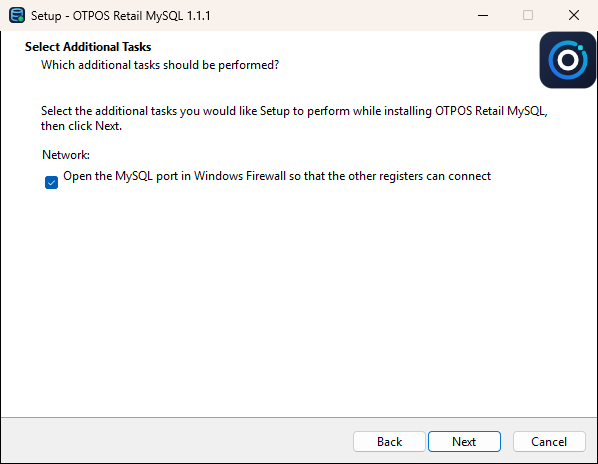
Select Additional Tasks. Leave Open the MySQL port in Windows Firewall so that the other registers can connect ticked. Without it, only this computer can reach the database.
 Full window
Figure 4. Firewall option (recommended). -
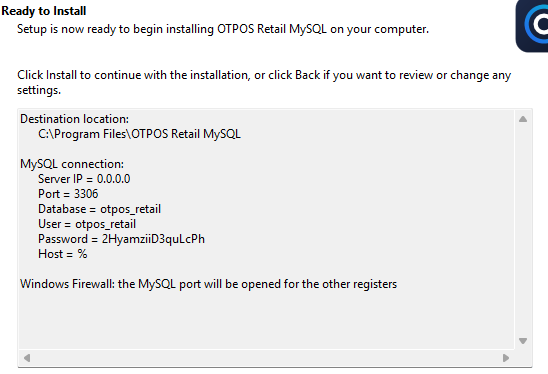
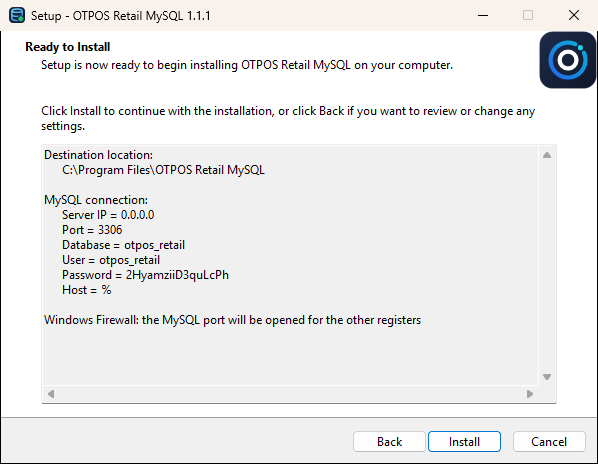
Ready to Install. Check the summary — it repeats the connection details, so this is a good moment to write them down — and click Install. Installing and starting the MySQL service takes about a minute the first time.
 Full window
Figure 5. Summary before installing.
After installation
The setup has:
- installed MySQL as the Windows service
OtposMySQL57, set to start automatically with Windows; - created the database and the user account you entered;
- opened the port in Windows Firewall (if you left the option ticked);
- scheduled an automatic backup every day at 02:30 (see Backup & restore);
- started the OTPOS Retail MySQL tray icon next to the clock, which also starts when you sign in.
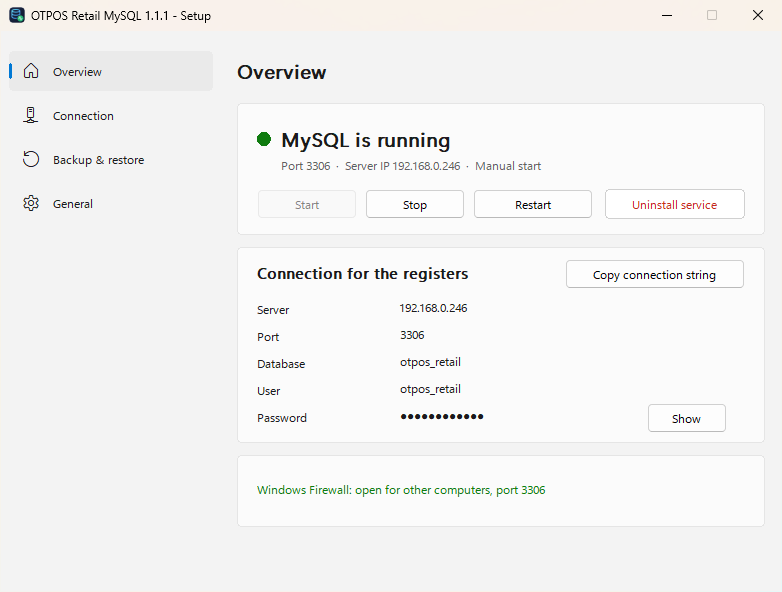
Double-click the tray icon (or right-click it and choose Setup…) to open the server’s Setup window. The Overview page should say MySQL is running and shows the connection details for the registers.
 Full window
The address under Connection for the registers → Server is what you will type on every register. If the server has several network cards, choose the right one in Connection → Server IP.
Exiting the tray icon does not stop the database — MySQL keeps running as a service.
4. Using your own MySQL or MariaDB server (optional)
Skip this section if you installed OTPOS Retail MySQL. If you already run a MySQL or MariaDB server (for example on a NAS or a Linux machine), you can use it instead. Ask its administrator to create an empty database and a user for OTPOS Retail Pro:
CREATE DATABASE otpos_retail CHARACTER SET utf8mb4 COLLATE utf8mb4_unicode_ci;
CREATE USER 'otpos_retail'@'192.168.1.%' IDENTIFIED BY 'choose-a-strong-password';
GRANT ALL PRIVILEGES ON otpos_retail.* TO 'otpos_retail'@'192.168.1.%';- Versions: MySQL 5.7.9 or later, or MariaDB 10.2.2 or later, with the InnoDB storage engine. Tested with MySQL 5.7 and MariaDB 11.8; MySQL 8 has not been tested yet.
- Character set: the database must use
utf8mb4, or names with accents, emoji or Chinese characters will not be stored correctly. - Privileges: the user needs full rights on its own database only (the first register creates and later upgrades the tables). It needs no rights on other databases.
- Binary log: if binary logging is on, use
binlog_format=ROWorMIXED(notSTATEMENT). - Network: the server must accept TCP connections from the registers on its port (
bind-address, firewall). - Backups of your own server are your responsibility — the automatic daily backup is part of the OTPOS Retail MySQL package only.
5. Connect the first register
Start with the register that already holds your products, members and sales history (if you are a new store, any register will do).
-
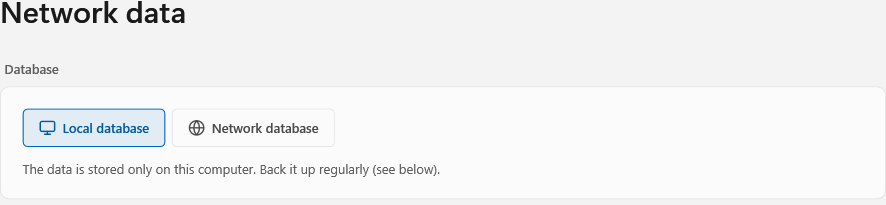
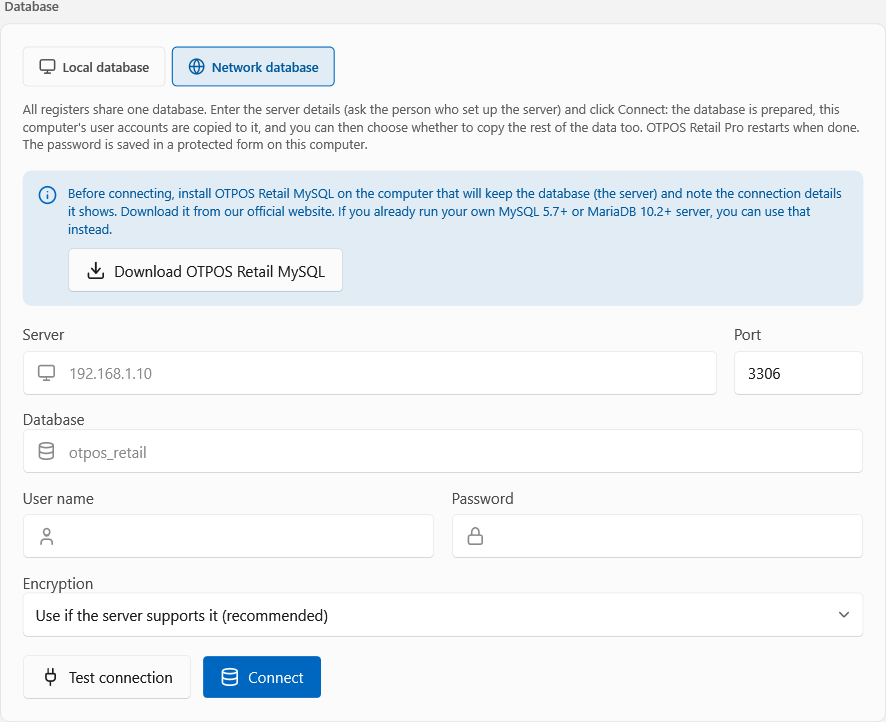
Sign in to OTPOS Retail Pro with an Admin account and open Settings → Network data. The Database card shows that this register uses its Local database.
 Enlarge
Figure 7. Settings → Network data on a register that uses its local database. -
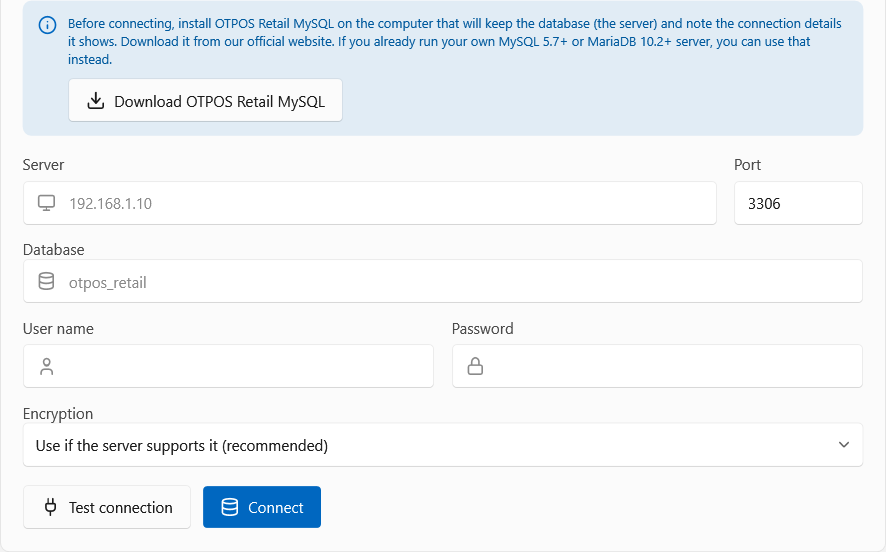
Click Network database. The connection form appears, with a blue reminder on top: install OTPOS Retail MySQL on the server first (Section 3). The Download OTPOS Retail MySQL button opens the download page on our website. Enter the details you wrote down: Server (the server’s IP address or computer name), Port, Database, User name and Password. Leave Encryption at Use if the server supports it (recommended).
 Full window
Figure 8. The connection form. The grey text in the boxes is only an example. - Click Test connection. A green message Connected: <server version> means the details are right. A red message tells you what is wrong — see Troubleshooting.
-
Click Connect. OTPOS Retail Pro now:
Connects and checks the licence (the 15-day trial starts now).Creates the tables on the server.Copies this register’s staff accounts and store settings to the server.Asks whether to copy the rest of the data too.Saves the connection and restarts.
-
When asked Copy the local data, choose Copy the data to take your products, sales, members, shifts and stock history along to the server (recommended for the first register). If you choose not to, the server starts with only the staff accounts and store settings.
Copy the local dataThe network database is ready and 3 user account(s) have been copied.
Also copy the other data of this computer (1,240 products, 8,512 sales, with members, shifts and stock history) to the network database?
Either way, the settings are saved and OTPOS Retail Pro restarts with the network database.Copy the dataCancelThe numbers in the message are your own.
-
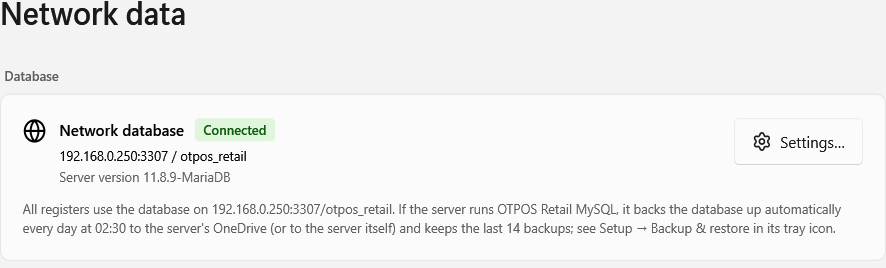
OTPOS Retail Pro restarts and signs you in against the network database. Open Settings → Network data again: the card now shows Network database · Connected, the server and its version.
 Full window
Figure 9. Connected to the network database. (This example server is a MariaDB on port 3307; yours shows your own address.)
Nothing is lost if something fails. If preparing the database fails, nothing is saved and the register keeps using its local database. If only copying the other data fails, the server keeps the accounts and settings, and the local data stays untouched — you can fix the problem, empty the server database and connect again.
The local database is never changed or deleted by connecting. It stays on the disk as it was.
6. Connect the other registers
On every other register, repeat steps 1–4 of Section 5 with the same connection details. Because the server already contains OTPOS data, the register says:
The settings have been saved. OTPOS Retail Pro will now restart.
After the restart, sign in with any staff account from the shared database. Open a shift on each register as usual; shifts, the cash drawer count and the “last sale” are kept per register.
Local data is not merged. Only an empty server database can receive a register’s local data. Sales made on a second register before it was connected stay in that register’s local database and do not appear in the shared reports. If several registers have been selling separately, connect the one with the most important history first, and decide whether the others’ old sales need to be kept (keep their backups).
Give each register a clear name in its device settings (for example “Till 1”, “Till 2”) so reports and shift reports show where each sale was rung up.
7. Everyday use
Starting the registers
Switch the server computer on first (or keep it running). When a register starts, it connects to the saved server. If the server cannot be reached, the register asks what to do:
Yes = try again
No = use the local database on this computer instead
Cancel = exit
- Yes — try again (for example once the server has finished starting).
- No — forget the network connection and use this register’s local database. Sales made this way are not on the server. Use this only in an emergency; reconnect afterwards in Settings → Network data.
- Cancel — close OTPOS Retail Pro.
Changing the connection or going back to local
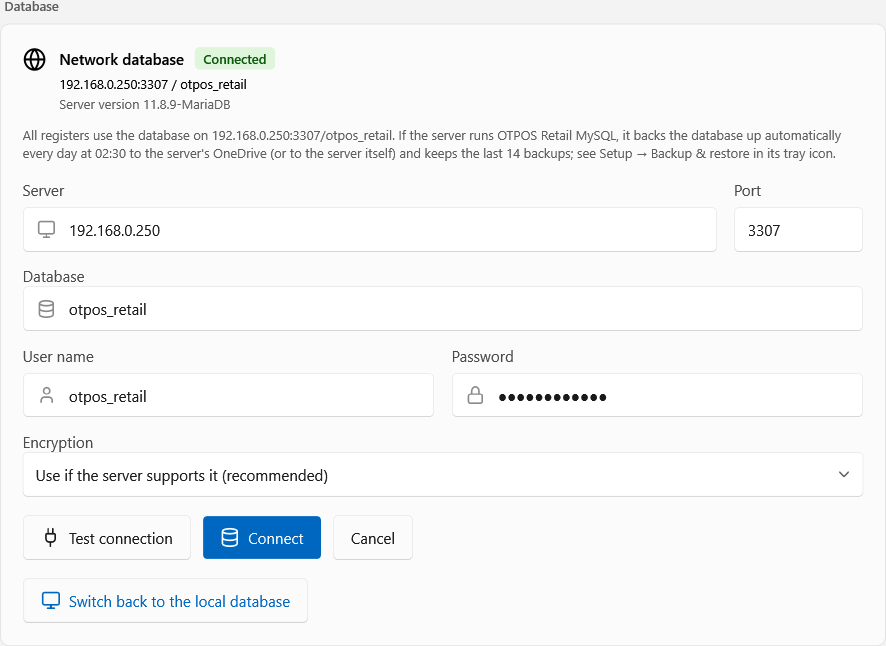
In Settings → Network data click Settings…. The connection form opens with the saved details.
 Full window
- Change a detail (for example a new server address or password), click Connect; the register saves it and restarts.
- Switch back to the local database makes this register use its own local database again after a restart. The data on the server is not deleted.
The connection details are saved on each register for the current Windows user; the password is stored encrypted (Windows DPAPI), never in plain text.
Backups
While a register is on the network database, the Backup section in its settings is hidden: the data lives on the server and is backed up there, automatically every night (see Backup & restore).
8. Managing the server
On the server computer, double-click the OTPOS Retail MySQL tray icon (or right-click → Setup…). The small badge on the icon shows the state: green = running, amber = starting or stopping, red = stopped, grey = the MySQL service is not installed. The Setup window needs administrator permission.
Overview
Shows whether MySQL is running, with Start, Stop, Restart and Uninstall service; the connection details for the registers (Copy connection string copies them in one line); and whether the firewall is open (Figure 6).
Stopping MySQL stops every register from selling until it is started again. Do it outside opening hours.
Connection
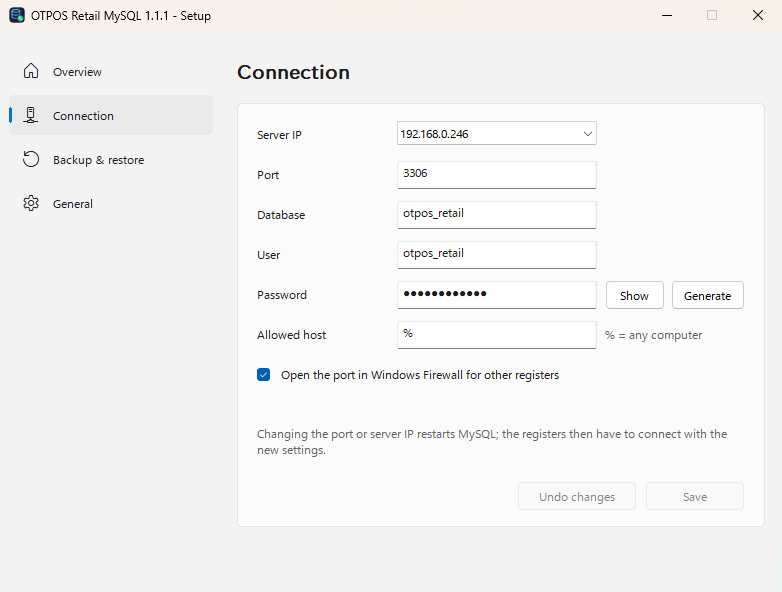 Full window
Change the server IP, port, database, user, password or allowed host, then click Save (Undo changes puts the saved values back). Generate creates a new random password.
Changing the port or server IP restarts MySQL. After changing the port, server IP, user or password, update the connection on every register (Settings → Network data → Settings…), or they can no longer connect.
Backup & restore
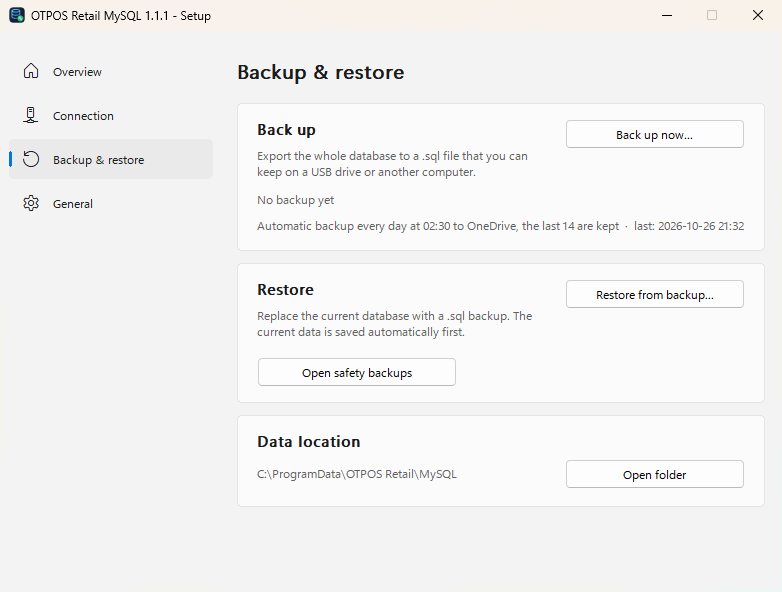 Full window
- Automatic backup: every day at 02:30 the whole database is exported to
OneDrive\OTPOS Retail Backups\MySQLof the Windows user who set up the server, keeping the last 14 backups. If OneDrive is not available, backups go toC:\ProgramData\OTPOS Retail\MySQL\backups. The status line shows when the last automatic backup ran. The server computer must be on at 02:30 (it does not have to be signed in). - Back up now… exports the database to a
.sqlfile you choose — for example on a USB drive before an update. - Restore from backup… replaces the whole database with a
.sqlbackup. The current data is saved first (a safety backup, see Open safety backups). - Data location shows where MySQL keeps its files (
C:\ProgramData\OTPOS Retail\MySQL).
Before restoring, close OTPOS Retail Pro on all registers. Everything entered after the backup was made — sales, stock changes, new members — is replaced. Restart the registers afterwards.
Sign in to OneDrive on the server computer so backups are kept off-site. Every now and then, check the status line or the backup folder to make sure new backups are arriving.
General
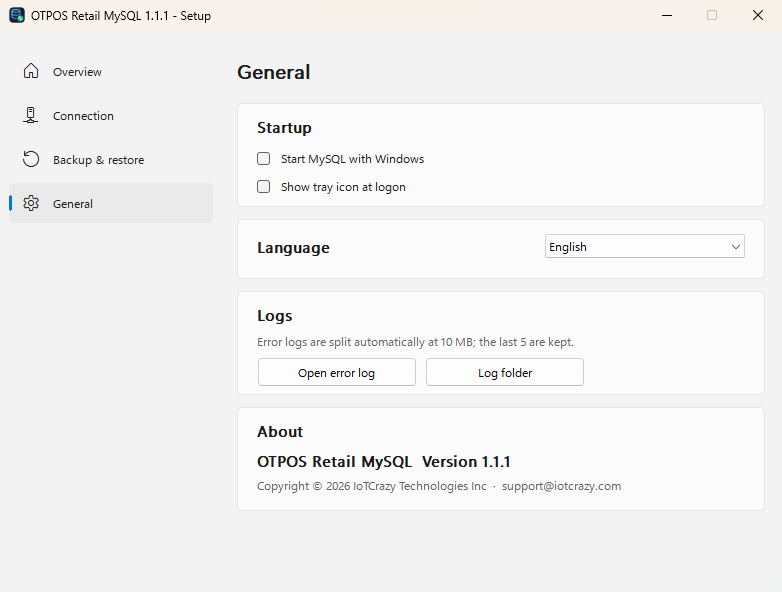 Full window
- Start MySQL with Windows — keep this on, so the database is available after a restart or power cut.
- Show tray icon at logon — the tray icon is only a monitor; MySQL runs without it.
- Language of the Setup window and tray menu.
- Logs — Open error log for MySQL’s own messages (useful for support); logs are split at 10 MB and the last 5 are kept.
9. Trial and licence
The network database is the paid feature of OTPOS Retail Pro. Using the local database is always free.
- Each register has a 15-day trial that starts the first time that register connects to a database server.
- When the trial ends, the register can no longer connect until OTPOS Retail Pro is activated on it. The data on the server is kept; nothing is lost.
- The licence is activated on, and belongs to, a computer. To move it to another computer, use Remove license from this computer first.
Open Settings → License to see the status, or to activate: enter the Name, Email and Registration code you received after buying, and click Activate (internet connection needed). Buy a license opens the online store.
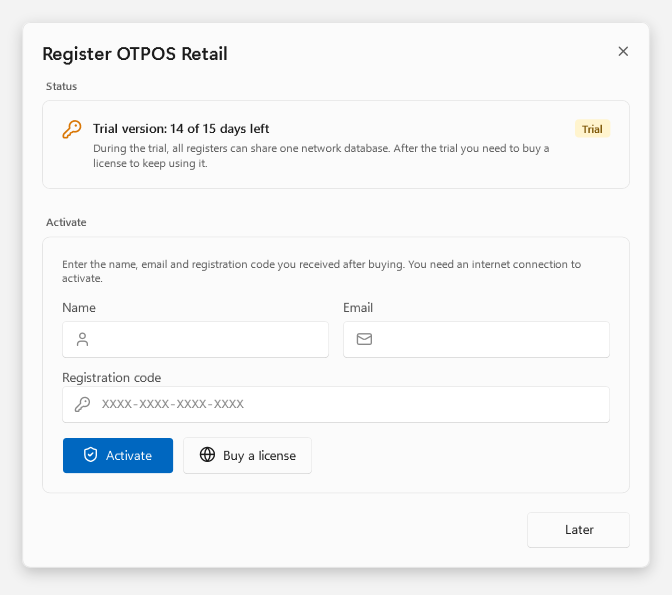 Full window
10. Updating OTPOS Retail Pro
All registers that share a database must run the same version of OTPOS Retail Pro. When the first updated register connects, it upgrades the database on the server automatically; registers with an older version then show “The server database was upgraded by a newer version of OTPOS Retail Pro. Install the same version on this register.”
- After closing time, close OTPOS Retail Pro on all registers.
- On the server, make a backup: Setup → Backup & restore → Back up now…
- Install the new OTPOS Retail Pro on every register.
- Start one register and sign in (it upgrades the database), then start the others.
The OTPOS Retail MySQL server package is updated separately by running its new setup on the server. It keeps your connection settings and data and skips the connection page.
11. Troubleshooting
| Message on the register | What to check |
|---|---|
| Cannot reach the server. Check the address, the port, the network and the firewall. | Is the server computer on, and does its Setup → Overview say MySQL is running? Is the address the one shown under Connection for the registers, and the port the same? Is the firewall open (Overview, last line)? Can the register reach the server at all (same network, cable/Wi-Fi)? Did the server get a new IP address (set a fixed IP)? |
| The server refused the user name or password. | Retype the user name and password (they are case-sensitive). Check them with Show on the server’s Overview page. If the Allowed host is limited (e.g. 192.168.1.%), the register’s IP must match it. |
| This user has no access to the database. | The database name is wrong, or (own server) the user lacks rights: GRANT ALL PRIVILEGES ON otpos_retail.* …. |
| The database does not exist on the server. Create an empty database first (utf8mb4). | Check the spelling of the database name. On your own server, create it (Section 4). |
| The trial of OTPOS Retail Pro has ended. Please activate it to connect to the database server. | Activate the licence on this register (Section 9). The data on the server is safe. |
| The server database was upgraded by a newer version of OTPOS Retail Pro. | Install the same version as the other registers (Section 10). |
| Another register is upgrading the database. Please try again in a minute. | Several registers started at once after an update; wait a minute and start again. |
| On the server | What to do |
|---|---|
| The tray badge is red; Overview says MySQL is stopped | Click Start. If it stops again, open General → Open error log and send the last lines to support. |
| The tray badge is grey (service not installed) | Right-click the tray icon → Install MySQL service. Your existing data in C:\ProgramData\OTPOS Retail\MySQL is used again. |
| Overview says the firewall is closed | Tick Open the port in Windows Firewall for other registers in Connection and click Save. |
| No new automatic backups | Check that the server computer is on at 02:30 and that OneDrive is signed in; open the Setup window once (it refreshes the backup task for the current user’s OneDrive). |
| The Setup window or tray icon does not open | Start OTPOS Retail MySQL from the Start menu. The database keeps running even without the tray icon. |
Still stuck? Email [email protected] with the message text, the server’s Overview screen and, if possible, the MySQL error log.
12. Good to know
- Store settings (tax rates, receipt text, order number format, loyalty points, …) are shared. When you change them on one register, restart the other registers so they pick up the change. Avoid changing store settings on two registers at the same time.
- Order numbers are unique across all registers. The order number format always contains the year.
- Product photos are stored on the computer where they were added; other registers show the product without its photo.
- Device settings (printers, cash drawer, scale, customer display, language, theme) stay on each register.
- On the network database, user names and barcodes that differ only in upper/lower case count as the same.
- The registers do not need the internet to sell — only the store network and the server.
Appendix: connection record & files
Connection record
Print this page, fill it in during the server setup and keep it somewhere safe (not taped to the register).
| Detail | Default | Your value |
|---|---|---|
| Server computer name | — | |
| Server IP address | e.g. 192.168.1.10 | |
| Port | 3306 | |
| Database | otpos_retail | |
| User name | otpos_retail | |
| Password | random | |
| Allowed host | % | |
| Date installed / by | — |
Where things are stored
| What | Location |
|---|---|
| Server program (MySQL, tray) | C:\Program Files\OTPOS Retail MySQL |
| Server database files, logs, connection settings (administrators only) | C:\ProgramData\OTPOS Retail\MySQL |
| Automatic backups | OneDrive\OTPOS Retail Backups\MySQL, otherwise C:\ProgramData\OTPOS Retail\MySQL\backups |
| Windows service | OtposMySQL57 |
| Register: connection details (password encrypted) | %LocalAppData%\OTPOS Retail\mysql.json |
| Register: local database (unchanged by connecting) | %LocalAppData%\OTPOS Retail\otpos.retail.db |
Uninstalling OTPOS Retail MySQL removes the service and the firewall rule but keeps the database files in C:\ProgramData\OTPOS Retail\MySQL. Delete that folder yourself only when you are sure you no longer need the data.
Screenshots: OTPOS Retail Pro 1.2.1 and OTPOS Retail MySQL 1.1.1 (English, light theme). MySQL is a trademark of Oracle Corporation; MariaDB is a trademark of MariaDB plc.